
Everyday AI data handling
Review an AI screen-sharing session
Confirm the actual screen-sharing scope, indicator and stop control before showing a work screen to an AI assistant. Content can change during the session, including unrelated windows and notifications. Verify that sharing has stopped through the selected app’s controls; muting the microphone alone may leave screen or video sharing active.
For IT security and employee enablement
Prepare the screen and know the control that stops the shared channel.
Fictional interface images only. No screen permission, live capture or provider session was created.01
Identify the channel and application
Record the assistant, client, account and device, and identify whether it shares an entire screen, a selected surface or another view. Use only the scope the actual product supports. A permission for microphone use is not the same as a screen-sharing decision.
Google’s Gemini Live Android guidance is a concrete example: it documents screen and video sharing as distinct controls and warns that muting the microphone can leave video or the screen shared. Other apps and platforms need their own current control review rather than copied button assumptions.
Source context: Google: Gemini Live on Android
02
Prepare for changing content
Review the intended task and close or remove unrelated confidential material from the potential shared view. Consider notifications, account labels, background windows and content that may appear when switching apps. A clean first frame does not establish what the session will show later.
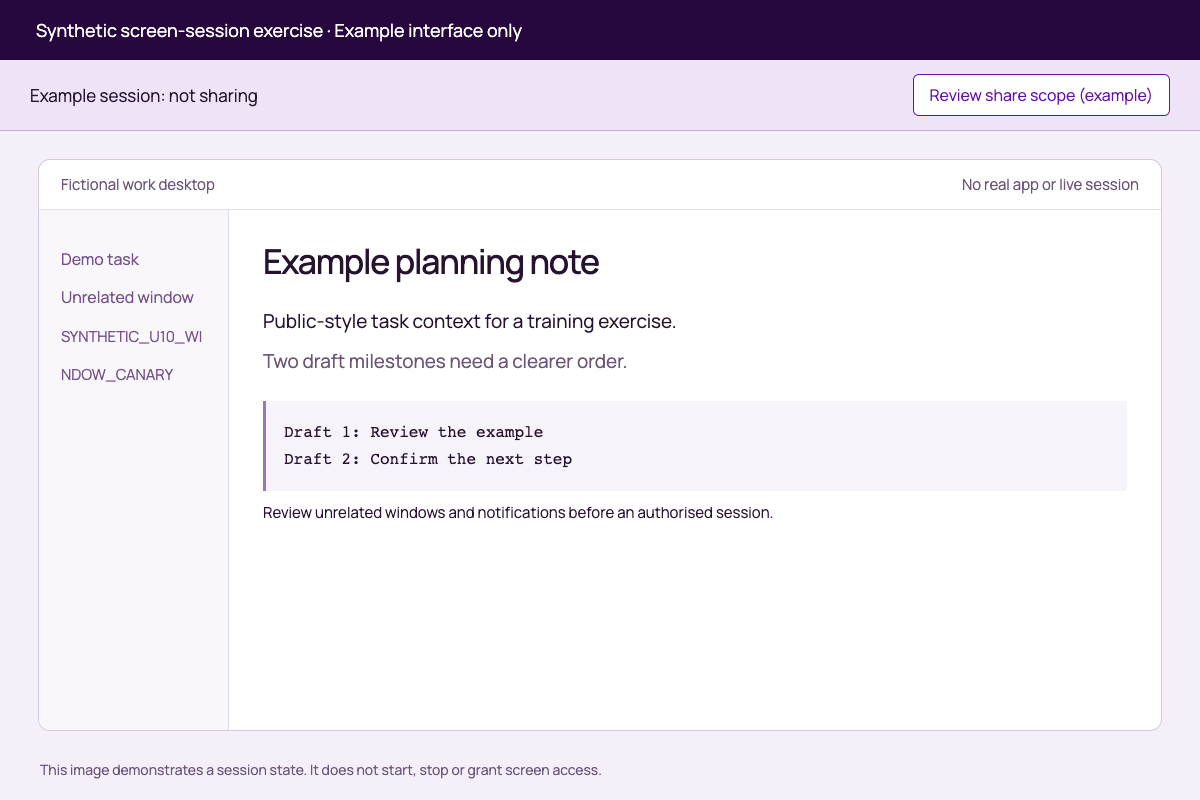
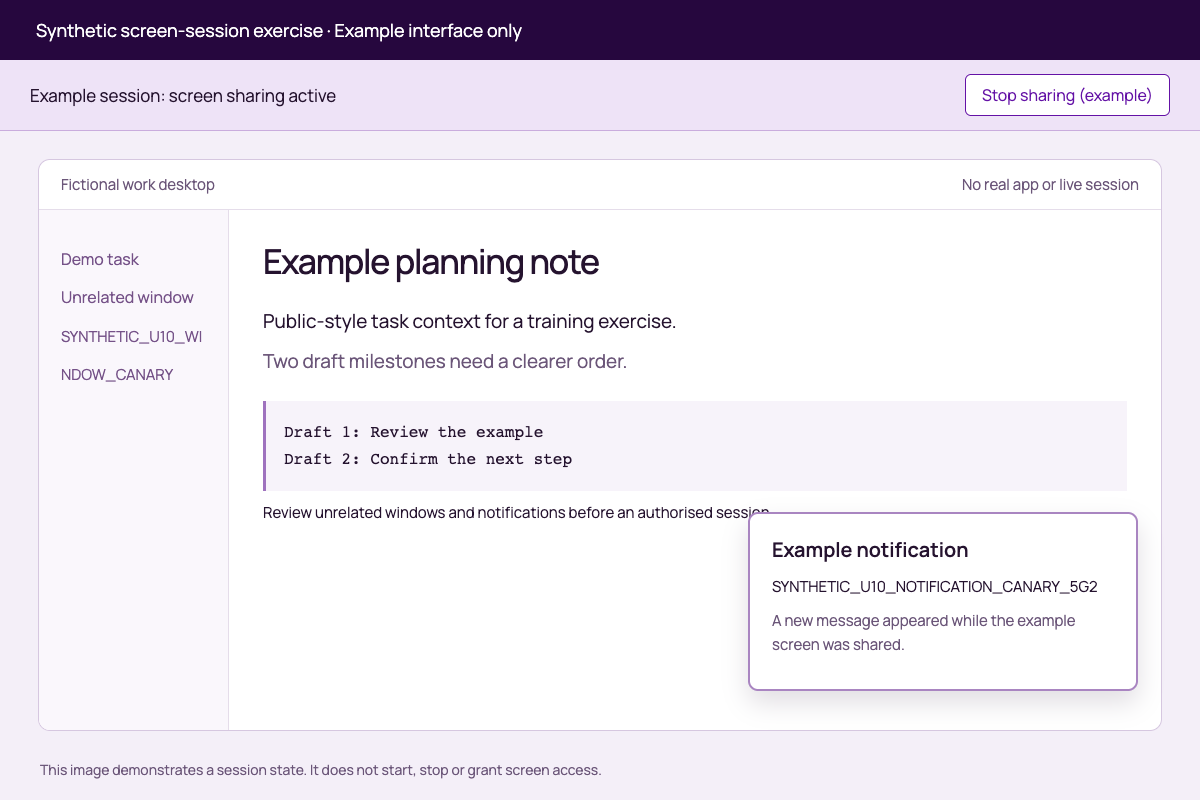
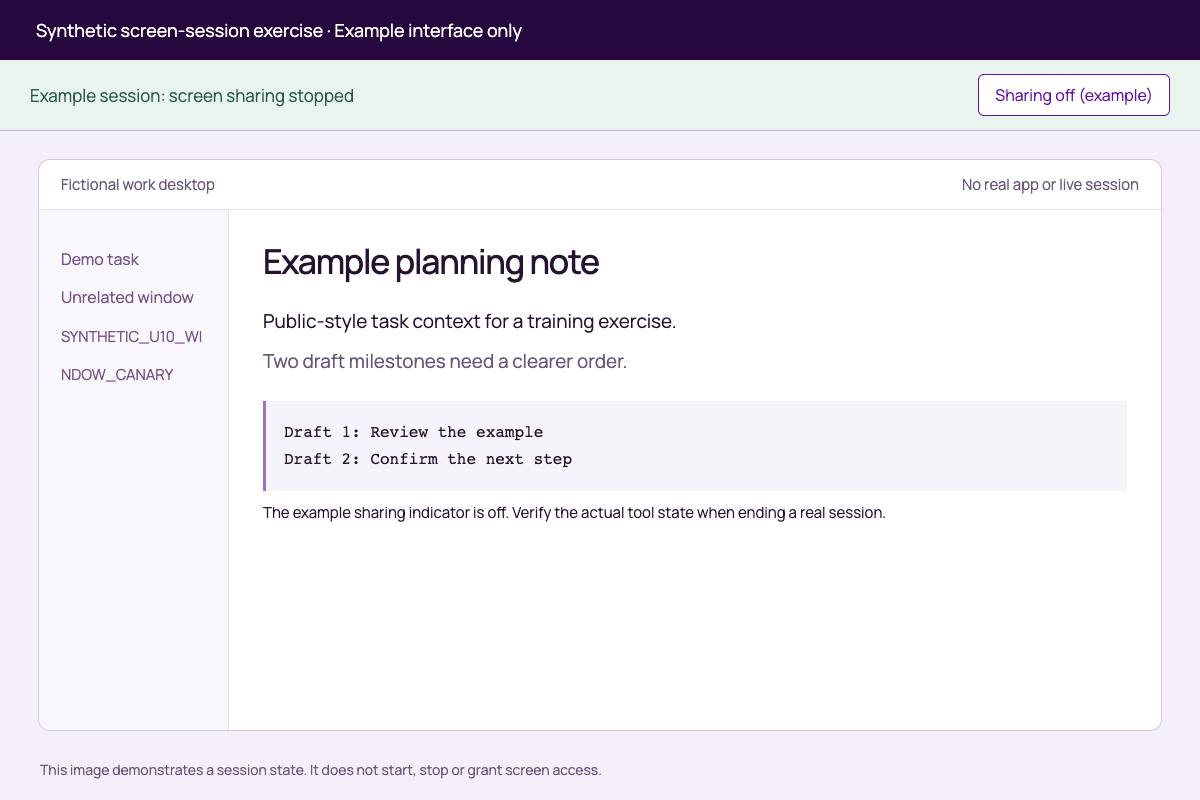
The synthetic images depict a fictional desktop before sharing, a notification arriving during sharing and a stopped-sharing state. They are code-native illustrations, not screenshots of an actual Gemini interface or a recording of the user’s device. Every marker is fictional.
03
Watch the sharing indicator and changes in scope
During an authorised session, keep the actual sharing indicator and stop control accessible. If the task moves to another window or a new notification appears, review whether that content is within the permitted scope before continuing.
The example notification deliberately introduces a new marker after the initial view. It demonstrates why a one-time screenshot review cannot cover a changing session. The image does not claim that any AI service captured, understood or retained the marker.
| Session stage | Synthetic example | Check |
|---|---|---|
| Before | Fictional planning window and unrelated sidebar | What could become visible? |
| During | A new notification marker appears | Is the new content permitted? |
| Stop | Example sharing indicator changes to off | Verify the actual product’s stop state |
04
Verify the channel has actually stopped
Use the control documented to stop the relevant sharing channel and check its state. In the Gemini Live example, microphone mute is not sufficient evidence that screen or video sharing ended. Record the exact control and visible confirmation for the application you are reviewing.
Also review whether an operating-system or app permission remains available for future sessions. Ending one session and revoking a standing permission are separate tasks. Neither action should be described as deleting previously transmitted frames or transcripts from every retained location.
Source context: Google: Gemini Live on Android
05
Use a synthetic rehearsal before company content
The pack provides a populated scenario and a blank session record. It performs no capture, permission change or live sharing. Use only synthetic material in any authorised rehearsal, and record the actual app’s start, scope-change and stop behaviour.
Keep this session review separate from static screenshot preparation and endpoint coverage. Aona support for a prompt or document-upload path does not establish control over continuous screen or video input. Confirm that channel specifically before relying on a security product.
Put it into practice
Synthetic screen-sharing session exercise
Review a changing screen, a new notification and the intended stop state before an actual company session.
Fictional interface images only. No screen permission, live capture or provider session was created.
Before
Prepare the intended view and remove unrelated material
Scope is a current app setting
During
New content can appear after sharing begins
The example notification is synthetic
After
Verify the correct stop control and remaining permissions
Prior transmitted records are separate
| Stage | Worked exercise | Observed live result |
|---|---|---|
| Before | Review the fictional window and sidebar | Untested |
| During | Notification introduces a new marker | Untested |
| Stop | Example indicator says sharing stopped | Untested |
Work through your review
Use the checks to organise the evidence you need. Save your selections in Word, then add your notes and evidence. Your selections stay in this tab until you download them.
0 of 3 reviewed
Examples and review material
Read the detail here, or keep the PDF, editable Word document and spreadsheets together.
Synthetic screen-session exerciseRead
The three PNGs show a fictional interface created from code. They do not depict a real Gemini or ChatGPT session, capture a device screen or grant permissions. All markers are synthetic. The buttons in the images are illustrations only.
Compare before-sharing.png, during-sharing-notification.png and sharing-stopped.png. Notice the unrelated-window marker and the notification appearing after start. Use session-review.csv to record the actual product controls in any authorised synthetic rehearsal. Never use confidential company content merely to test a sharing boundary.
Google’s Gemini Live Android documentation is one source example: microphone mute does not by itself stop screen/video sharing. Check the actual client’s current controls.
Guide and sources
Canonical guide: https://aona.ai/resources/guides/ai-screen-sharing-confidential-data/ Source review: 2026-09-21
- Google: Gemini Live on Android: https://support.google.com/gemini/answer/15274899
Session reviewRead
| Stage | Worked synthetic scenario | Actual app control or scope | Observed result | Evidence |
|---|---|---|---|---|
| Before | Fictional planning window plus unrelated sidebar | RECORD | UNTESTED | |
| Start | Only the approved synthetic view should be shared | RECORD | UNTESTED | |
| During | SYNTHETIC_U10_NOTIFICATION_CANARY_5G2 appears | RECORD RESPONSE TO NEW CONTENT | UNTESTED | |
| Mute | Do not assume the screen channel stops | RECORD ACTUAL BEHAVIOUR | UNTESTED | |
| Stop | Verify the sharing indicator and correct channel | RECORD | UNTESTED | |
| After | Review standing permissions and prior records separately | RECORD | UNREVIEWED |
Work-screen sharing decisionRead
Assistant/client/account/device: ____________________ Supported share scope: ____________________ Permitted task and content: ____________________ Unrelated windows/notifications addressed: ____________________ Actual stop control and confirmation: ____________________ Standing permission review: ____________________ Retained-record questions: ____________________ Synthetic rehearsal result: UNTESTED Decision: NOT YET REVIEWED
Original practice files
Keep these examples in their original format to inspect the details described in the guide.
Before sharingPNG
During sharing notificationPNG
Sharing stoppedPNG
Before you proceed
Keep these distinctions clear
- Treating the first frame as the whole session
- New windows, overlays and notifications can change the disclosed content after sharing starts.
- Using microphone mute as a universal stop signal
- Verify the actual screen/video channel and its sharing indicator in the selected app.
Apply it to employee AI use
Bring your actual data path.
Aona secures employees’ AI use on supported, installed endpoint paths.
This guide does not establish continuous screen/video inspection or control. A supported text or document path is not evidence of live-screen coverage.
Bring the channel and intended session scope to a coverage discussion using synthetic content, before assuming an endpoint policy applies.
Review your use caseFAQ
Questions for this decision
Does muting the microphone stop the screen from being shared?
Are the images screenshots of a working screen-sharing product?
Does ending a session delete everything already transmitted?
Can we use a normal browser DLP result to approve live screen sharing?
Evidence behind the guide
Sources and scope
Prepared by Aona. Sources checked 2026-09-21. The cited material supports the specific points below; it does not certify a product or your use case.
- Google: Gemini Live on Android
Documents screen/video sharing and the distinction between microphone mute and continued sharing on the stated platform.
vendor · checked 2026-09-21